Using the Node Chooser Control
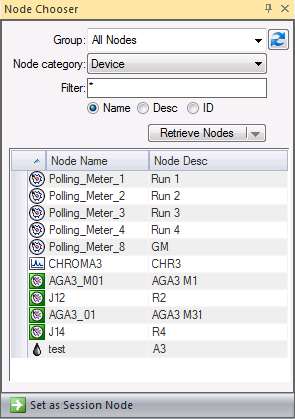
 The Node Chooser control is the primary data navigation control in FMS Explorer. Use the Node Chooser control to select Nodes by setting parameters for group, Node category (where present), and/or a selected filter type, in order to filter the available Nodes down to a manageable number. From this filtered list, a selected Node can be set as the Session Node to manage how you are able to view the data. Other controls can then optionally display data for the selected Session Node automatically.
The Node Chooser control stands alone as a control, but is also embedded in all other FMS Explorer controls (except the PPA control). It can be displayed or pinned to the side as desired. You can create up to eight instances of this control.
Use the context menu accessed from the Node choosers to view Node properties and details, or to execute FMS commands for a selected Node, directly from the control. Additionally, you can use the stand-alone chooser to set the Session Node, while the embedded choosers allow you to select Node(s) for display in the corresponding control.
Note: Every component of the Node chooser control is not necessarily functional for every embedded Node chooser.
You must have proper security authorization to perform certain actions. See FMS Security for more information about configuring security access to Nodes.
See FMS Explorer User Interface for more information about the FMS Explorer user interface.
Node Chooser Control
Set the following Node Chooser control filtering parameters to begin filtering data results and focusing on specific areas for analysis. The Chooser pane will display Nodes of eligible categories (dependent upon the Node types appropriate for each control), as filtered by your choices, in the Node chooser results list.
Node Chooser Filtering Parameters
|
Group
|
Select whether to filter by a Node Group type.
Options are as follows.
- All Nodes
- General
- Station
- By Category
When configured groups are saved in your system, those groups and their member Nodes will also be listed within the corresponding General or Station group options.
When defined group categories are saved in your system, those categories will also be listed within the By Category option.
|
|

|
Click to refresh the available Group list.
|
|
Node category
|
Select the Node category to display. Nodes of the category selected, that belong to the Group option selected, will be shown.
Options for Node category are as follows.
- <Any>
- Group
- Device
- Gas Device
- Liquid Device
- Accessory
- Station
Applicable Node category options will be displayed depending on the control, as follows.
- The stand-alone Node Chooser (Navigation) control, and the embedded chooser in the Reports (Reports), and Jobs (Admin) controls display all of the above Node category options.
- In the Dashboard (Summary) control, the embedded chooser displays the Node category options <Any>, Group, Device, Gas Device, Liquid Device, and Station.
- In the Exceptions (Summary) control, the embedded chooser displays the Node category options <Any - Gas>, Group, Gas Device, and Station. (Liquid device Nodes are not supported.)
- In the History Grid and History Graph (Data) controls, the embedded chooser displays the Node category options Device, Gas Device, Liquid Device (periodic only), or Station.
- In the Raw Data (Data) control, the embedded chooser displays the Node category options Device, Gas Device (including station meters), or Liquid Device.
- In the Close Period (Admin) control, the embedded chooser displays the Node category options Group, Liquid Device, or Station. Selected Nodes will be resolved to their station entries (station meters and physical station groups) for display in the control.
Some controls do not offer Node category options on the embedded Node chooser since data is always displayed specifically for the applicable Node category, as follows.
- In the Configuration and Alarm (Data) controls, the embedded choosers only display data for Gas Device Nodes (including Station Meter Nodes).
- In the Balance (Admin) control. the embedded chooser displays data for Liquid Device or Station Nodes.
Note: The Prior Period Adjustment control displays PPAs for all Nodes within a selected time window; it does not utilize a Node chooser.
|
|
Filter
|
Select a filter.
First type a partial string of known Node name/description/ID characters to populate the filter text box.
Wildcard values * (multiple character) and ? (single character) are supported.
Default value is * (multiple character wildcard) - all.
Note: Wildcards can be used only when filtering by Name or Desc, not when filtering by ID.
Then select a Node option to filter for results.
Options are as follows.
Nodes matching the filter, for the Node category selected, that belong to the Group option selected, will be shown.
|
|
Retrieve Nodes
|
Click to apply the selected filters and retrieve the results. You also have the option to apply the selected filters while ignoring the cache.
Options include Retrieve Nodes or Retrieve Nodes (Ignore Cache).
Note: Caching improves performance. The option to select Retrieve Nodes (Ignore Cache) is offered in the event that results are not as expected or that the cache isn't operating or updating quickly enough for the current requirement.
|
Node Chooser Results List
Results for retrieved Nodes are listed in columns by Node type icon, Node name and Node description. You can sort displayed results based on any of the following columns.
|
[Icon]
|
Displays the icon indicating the Node type
Node icons are as follows.
| |

|
Gas Meter Device Node
|
| |

|
Station Meter Node |
| |

|
Chromatograph Device Node
|
| |

|
Liquid Device Node
|
| |

|
Accessory Node
|
| |

|
General Group Node
|
| |

|
Station Group Node
|
Click on the column header above the icons to sort the display (in ascending or descending order) based on Node type.
|
|
Node Name
|
Lists the names of the Nodes that meet the selected filters
Click on the column header to sort the display (in ascending or descending order) based on Node Name.
|
|
Node Desc
|
Lists the descriptions of the Nodes that meet the selected filters
Click on the column header to sort the display (in ascending or descending order) based on Node Desc.
|

Setting the Session Node
You can use the stand-alone Node Chooser control to set a selected device or group Node as the "Session Node." Other FMS Explorer controls will then automatically display data for the Session Node when the Use Session Node option is selected in their Options pane. The embedded Node chooser in other FMS Explorer controls can still be used to select and view data for a Node other than the Session Node, if Use Session Node is not selected in its options.
See Session Node for more information about options for setting the session Node.
To Set the Session Node from the Stand-Alone Node Chooser Control
The following table lists multiple options for setting the Session Node from the stand-alone Node Chooser control.
Note: You can also set the Session Node from the data grid context menus of several other FMS Explorer controls. See Session Node for a list.
|
[double-click]
|
To set one Node as the Session Node, double-click to select it within the stand-alone Node Chooser control.
|
|
Ctrl+Shift+S
|
To set one Node as the Session Node, click to select it within the stand-alone Node Chooser control, and then press Ctrl+Shift+S.
See Session Node for additional usages of this keyboard shortcut from the Controls menu.
See Using Keyboard Shortcuts for additional keyboard shortcuts used in FMS Explorer.
|
|
 Set as Session Node Set as Session Node
|
To set one Node as the Session Node, click to select it within the stand-alone Node Chooser control, and then click Set as Session Node.
|
Columns
Columns can be reorganized for the most efficient viewing of data in the following ways.
- Hover over a column edge to display an icon to reset column width. Drag the column to the desired width.
- Click on a column header to sort the displayed data based on that field, in either ascending or descending order.
Context Menu
Right-click on a Node name in the Node Chooser to access the following options. Options applicable to the selected Node will be enabled.
|
Apply changes
|
This option appears for embedded Node chooser controls only.
Click Apply changes to apply your Node selection(s) for display in the control.
Multiple Node selection is available in the embedded Node choosers for Dashboard, Exceptions, History Graph, and Close Period controls. Use Shift+Click or Ctrl+Click to make multiple Node selections from the retrieved Nodes list, and then click Apply changes.
Note: If selections have been made on the Options pane, but not applied, those selections will also be applied when you click Apply changes on the Chooser pane.
|
|
View Node properties
|
Click View Node properties to access the Properties dialog box to view properties for the selected Node.
This option is available for all Node types.
See Viewing and Editing Node Properties for more information.
|
|
View polling device
|
Click View polling device to access the FMS Polling Device dialog box, to view the SCADA device ID and facility ID, the DDS data groups, and the communication data bytes for the SCADA polling device linked to the selected device Node.
This option is available only for device (Gas Meter or Chromatograph) Nodes.
This option is also available directly from the data grid context menus of the Dashboard and Exceptions controls.
See Viewing and Editing SCADA Polling Device for more information.
|
|
View polling FAC
|
Click View polling FAC to view the Properties dialog box for the SCADA polling facility linked to the selected device Node.
This option is available only for device (Gas Meter or Chromatograph) Nodes.
See Viewing and Editing SCADA Polling FAC for more information.
|
|
View reporting FAC
|
Click View reporting FAC to view the Properties dialog box for the SCADA reporting facility linked to the selected station Node.
This option is available only for station group and station meter (a Gas Meter Node set to also function as a station) Nodes.
See Viewing and Editing SCADA Reporting FAC for more information.
|
|
View associated FAC
|
Click View associated FAC to view the Properties dialog box for the facility associated with the selected Accessory Node.
This option is available only for an Accessory Node (a non-meter-specific Node primarily used for scheduling jobs in conjunction with CygNet Dispatch).
See Accessory Node for more information.
|
|
Execute FMS command
|
Click Execute FMS command to access a list of configured FMS commands, or a <Quick Command> option.
Note: To select multiple Nodes for FMS command execution, use Ctrl+Click or Shift+Click.
See Running Node Commands from a Node Chooser for more information.
|
Running Node Commands from a Node Chooser
Existing Node commands or a <Quick Command> can be run directly from any Node Chooser control for a selected Node.
To Run a Node Command from a Node Chooser
- In the Node Chooser, right-click on the Node Name against which you want to run a command to access the context menu.
- On the context menu, click Execute FMS command to access a list of available FMS commands, including a <Quick Command> option.
- Continue from step 3 of Running Node Commands for either configured commands or a <Quick Command>.

